
PST 2025.11.20(Thu) 04:00 - In Selling Guide > 2. Managing Registered Items for Sale, wording that could cause misunderstanding has been revised.
Greetings, Descendants!
We would like to introduce the in-game "Trading System" to enhance the convenience for our Descendants,
the "BETA Trade Market" has opened on the official website.
Please refer to the guide below for instructions on how to use the Trade Market.
■ What is the BETA Trade Market?
- Descendants who wish to sell items can register the desired items and buyers can search for and attempt to purchase the registered items.
- As this is the first introduction of a trading system, it will initially open as a beta service to ensure service stability, and will later transition to an official service.
■ Selling Guide
1. How to Register a Sale
※ Sales registration is available after logging into your game account, regardless of whether you are currently in-game.
- After logging in, in the top right corner of the homepage, click the [MARKET BETA] button.
- Click the [Register for Sale] button in the bottom right corner of the Trade Market.
- After checking your owned items, select the desired selling price and available platform, then register the item.
ㄴ You can register up to 5 items for sale.
2. Managing Registered Items for Sale
- You can check the items you have registered for sale by clicking the [Sales History] button on the bottom right of the Trade Market.
- The "..." button to the right of each item for sale, can be used to mark an item as sold, or to delete or modify an item.
- When marked "Sold," the item is removed from the sale list and moved to the sold list.
- The Sales History can only be viewed for the last 90 days.
- (Updated) Listings for items not traded within 7 days will be automatically deleted from the sales list and history.
- If you wish to extend the sale period, click the "..." button to the right of the item, then click modify, which will extend the period by 7 days from the modification date.
■ Purchase Guide
※ Purchases are only possible when both the seller and buyer are in-game.
- After logging in, in the top right corner of the homepage, click the [MARKET BETA] button.
- Search for the desired item, check the option information and sale price, then click the [Purchase] button.
ㄴ When searching, you can check the actual in-game trading prices in the statistics menu.
- When you click the [Purchase] button, a whisper will automatically be sent to the seller.
ㄴ The message is sent in the language set by the seller.
For Example: "I would like to purchase [Item Name] for [Amount] Caliber."
ㄴ When clicking Purchase, whispers can only be sent once every 30 seconds.
ㄴ In December, a feature to check detailed options will be added with item name links included in whisper messages.
- The seller will check the whisper and send a party invitation to the buyer to form a party.
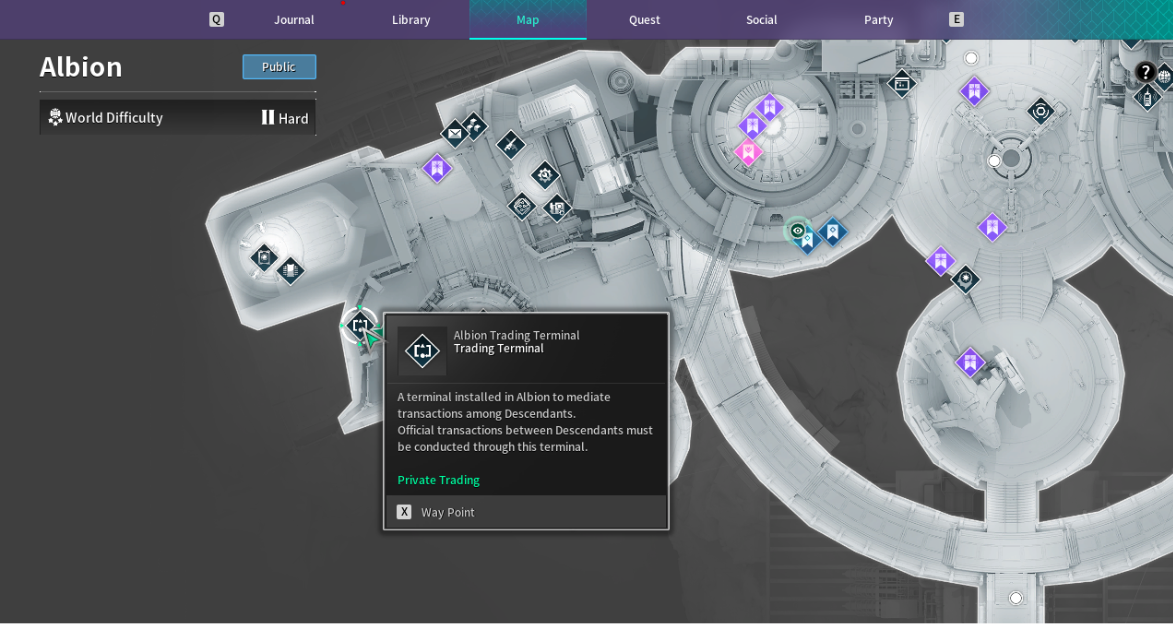
- After moving to the same instance via the party, the trade can take place via the "Albion Trading Terminal."
ㄴ During trading, the party member will appear at the top of the "Player Trade List" for quick transactions.
■ Important Notes
- The Trade Market cannot be used while under game or trade restrictions.
- The seller's online status is not reflected in real-time and may be delayed by approximately 10 minutes.
- Please use the "Purchase" function only when necessary to ensure smooth operation.
- When acquiring an item through a trade, a fee in gold will be deducted. (Trigger module: 500,000-gold fee)
- The statistics are based on actual in-game transaction data and may differ from the information listed on the Trade Market.
- On PS and XBOX, trading with other platforms is disabled when "Cross-Platform Play" is set to OFF.
- Damages caused by incorrect trades cannot be recovered through Support. Please carefully verify the trade items and amount before proceeding with in-game transactions.
■ In-Game Private Trading Process
- Form a party with the Descendant you wish to trade with and move to the same instance.
ㄴ If you are not in the same instance, you cannot see the trading partner at the "Albion Trading Terminal."
- Move to the "Albion Trading Terminal" and interact with it.
ㄴ Both the buyer and the seller must interact to be visible in the "Player Trade List."
- The party member will appear at the top of the "Player Trade List." Select the account name and send a "Trade Request."
ㄴ When a trade request is sent, a trade request popup message will appear to the trade partner, and after confirmation, they will move to the trade screen.
- Register the item to sell or Caliber, then "Lock Trade."
ㄴ Trading is only possible through direct exchange of items and Caliber.
- When you are ready to "Lock Trade," carefully verify the items and Caliber amount, then press "Accept Trade" if everything is correct.
ㄴ The trade will be completed when both the buyer and seller press "Accept Trade."
ㄴ The trade lock will not be released if one person presses "Accept Trade."
ㄴ If you need to modify the items or Caliber amount at this time, you must cancel and initiate a new trade.
- When acquiring an item through a trade, a gold fee will be deducted. (Trigger module: 500,000-gold fee)
| ※ Please check carefully before trading! - Trading is available only after reaching Mastery Rank Level 15 or higher and completing the Trade Quest "The Only Trade for Individuals." - If you are using the PS platform, you must complete "Two-Factor Authentication" in [Options] – [Account] to enable trading. - Trade attempts are granted based on Mastery Rank Level and both the buyer and seller will have their trade attempts deducted when a trade is made. - Trading is not possible once all trade attempts have been used and trade attempts reset at 23:00 PST. - The minimum trade amount is 10 Caliber. Trade amounts can only be set in increments of 10 Caliber. |
Thank you.